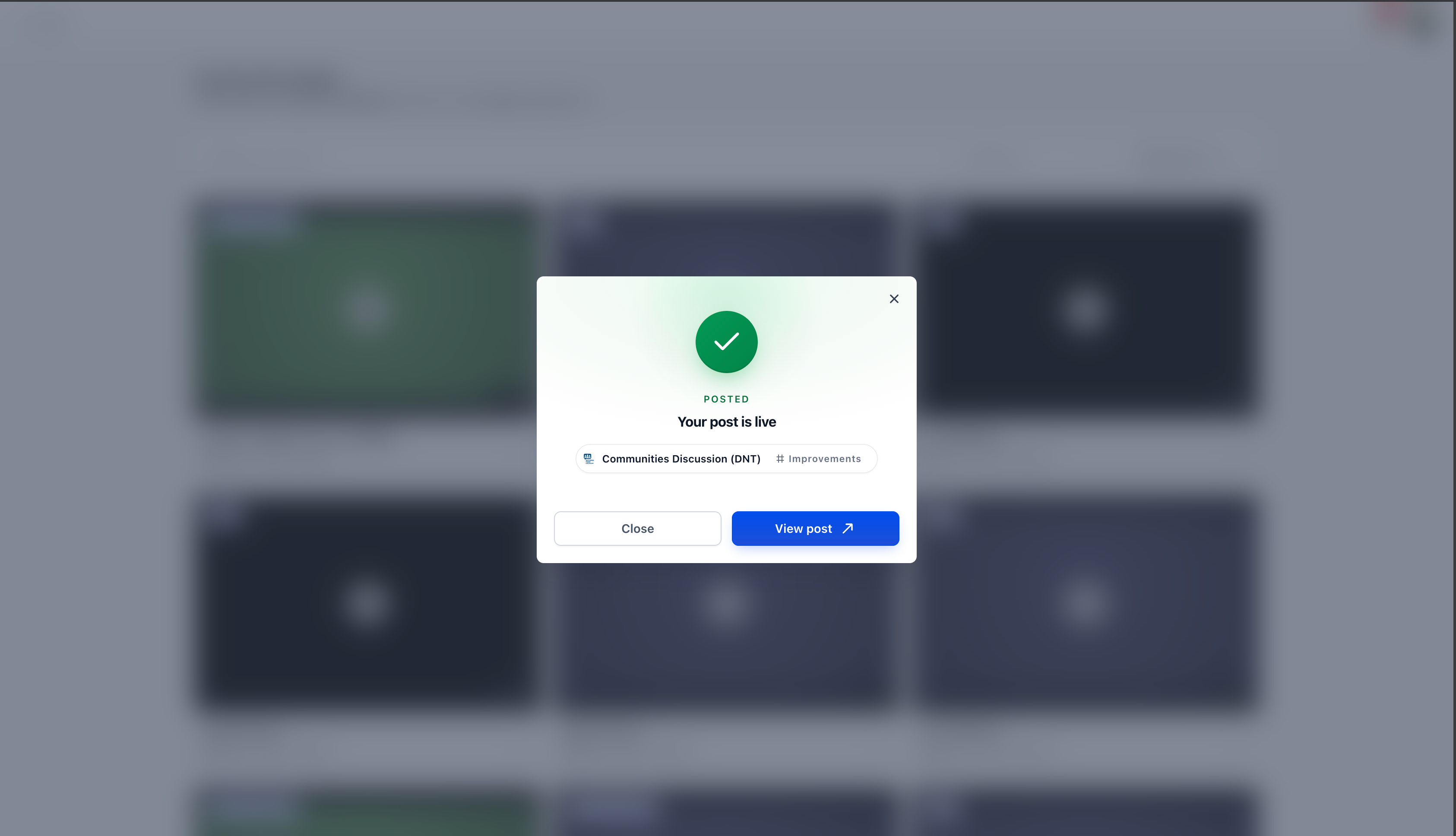
With the new Share as Post option, you can now share recordings directly into Communities in just a few clicks — making it easier to continue conversations, share updates, and keep collaboration flowing after meetings.
Share Recordings Directly into Communities
A new Share as Post action is now available on recordings, allowing users to publish recordings without leaving the current workflow.
How to?
Head over to top right avatar of profile > Click Manage Profile
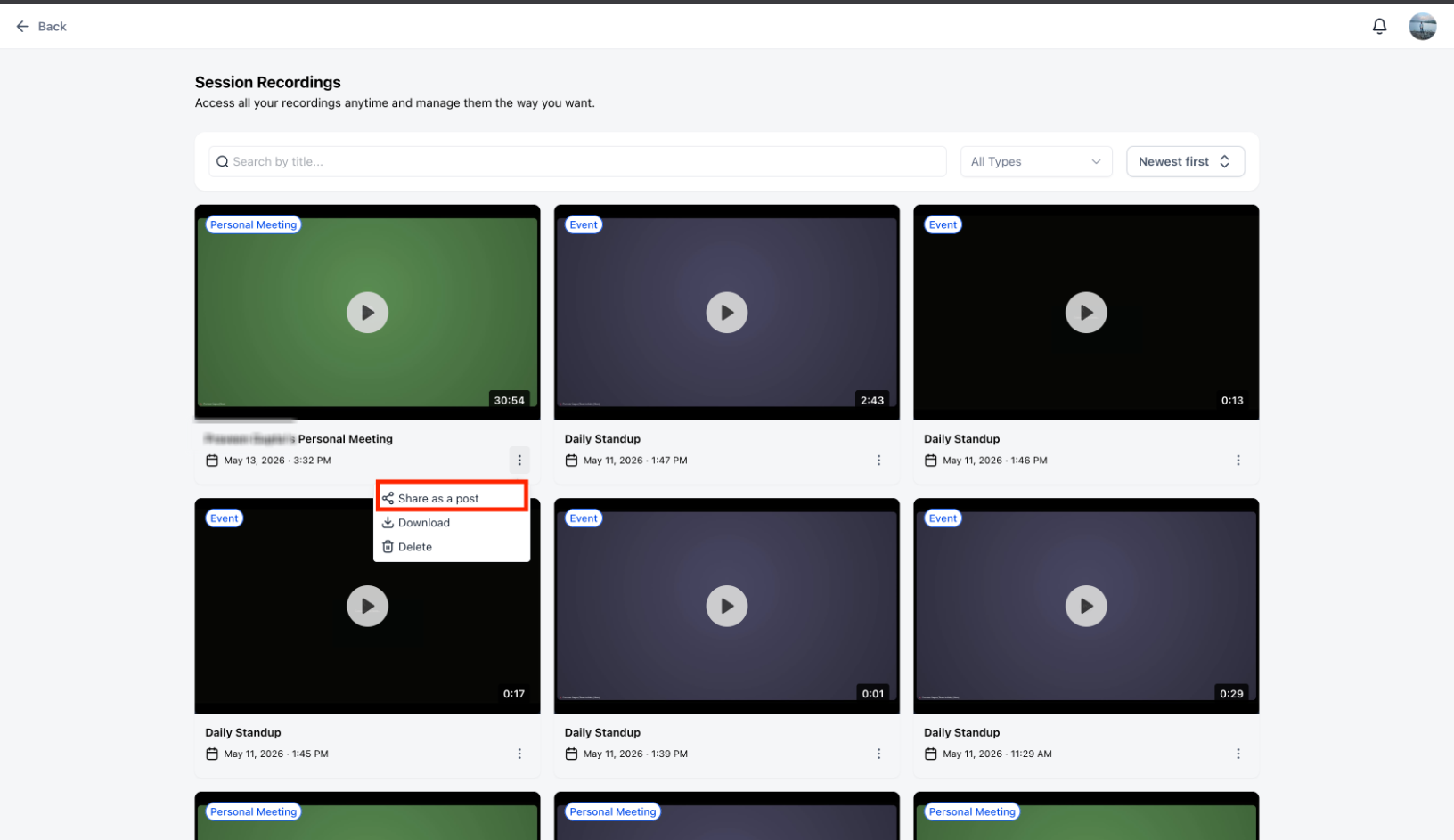
Click on Meetings > View recordings
Choose the relevant recording > click on 3 dots
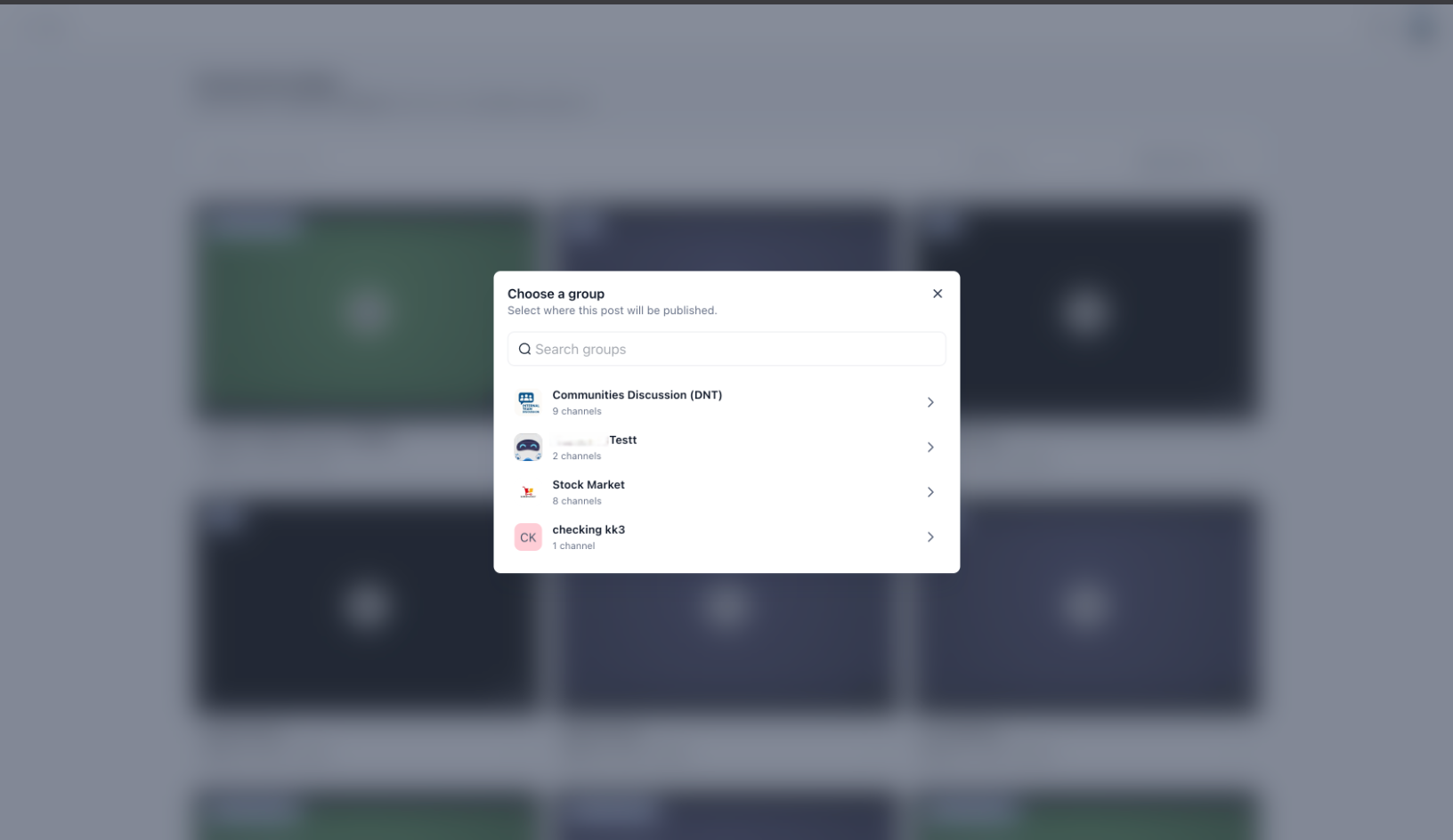
After clicking Share as Post, users will see a searchable Community selection modal.
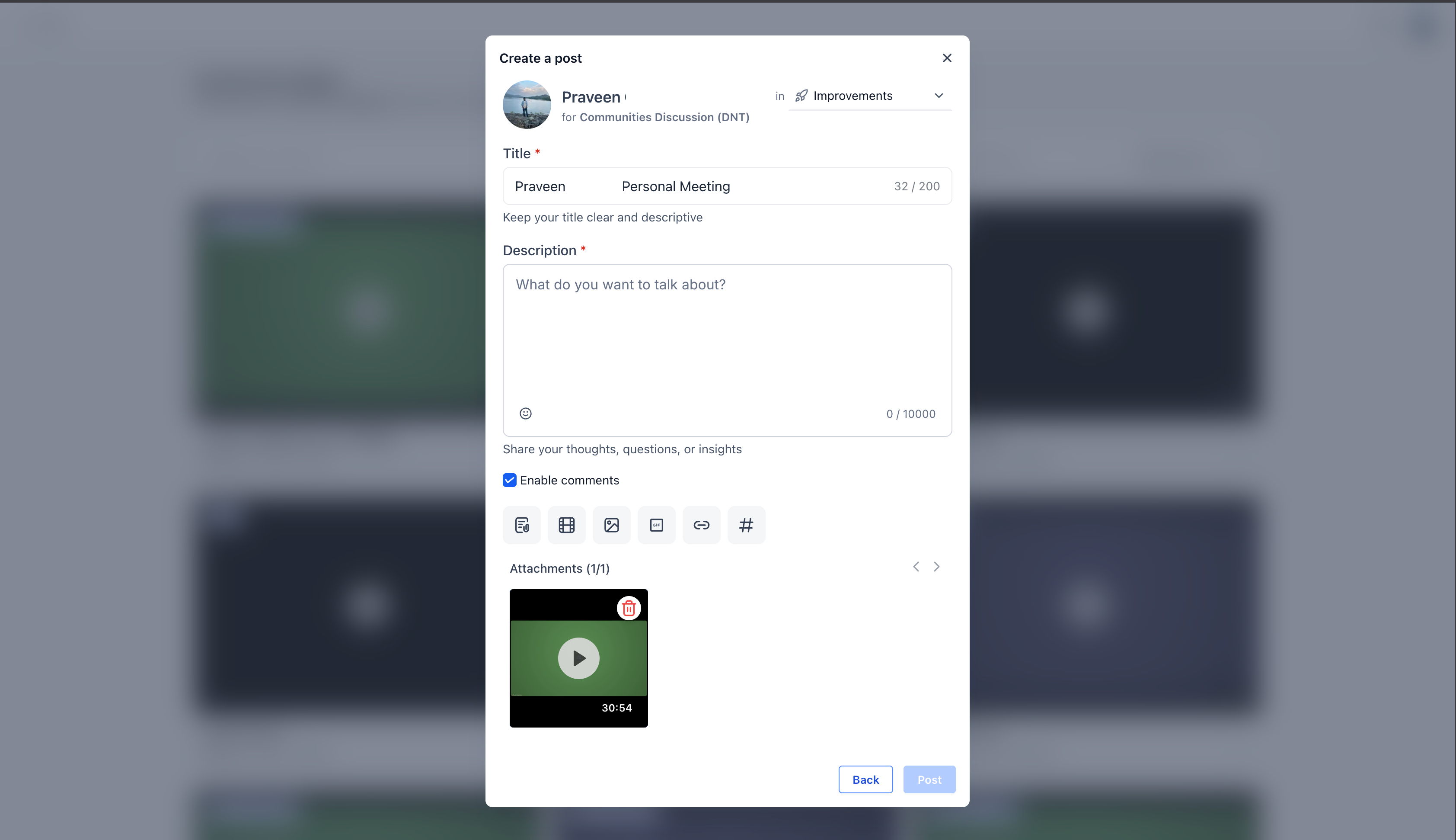
Choose the relevant community and channel to post in.
Was this article helpful?
That’s Great!
Thank you for your feedback
Sorry! We couldn't be helpful
Thank you for your feedback
Feedback sent
We appreciate your effort and will try to fix the article